
Identify whether the Mac uses Intel or Apple silicon, compare the exact model with current official support information, then follow the official macOS download, verification, image-writing, and startup-picker instructions. Test the finished USB on that exact Mac before relying on it away from a backup computer or network.
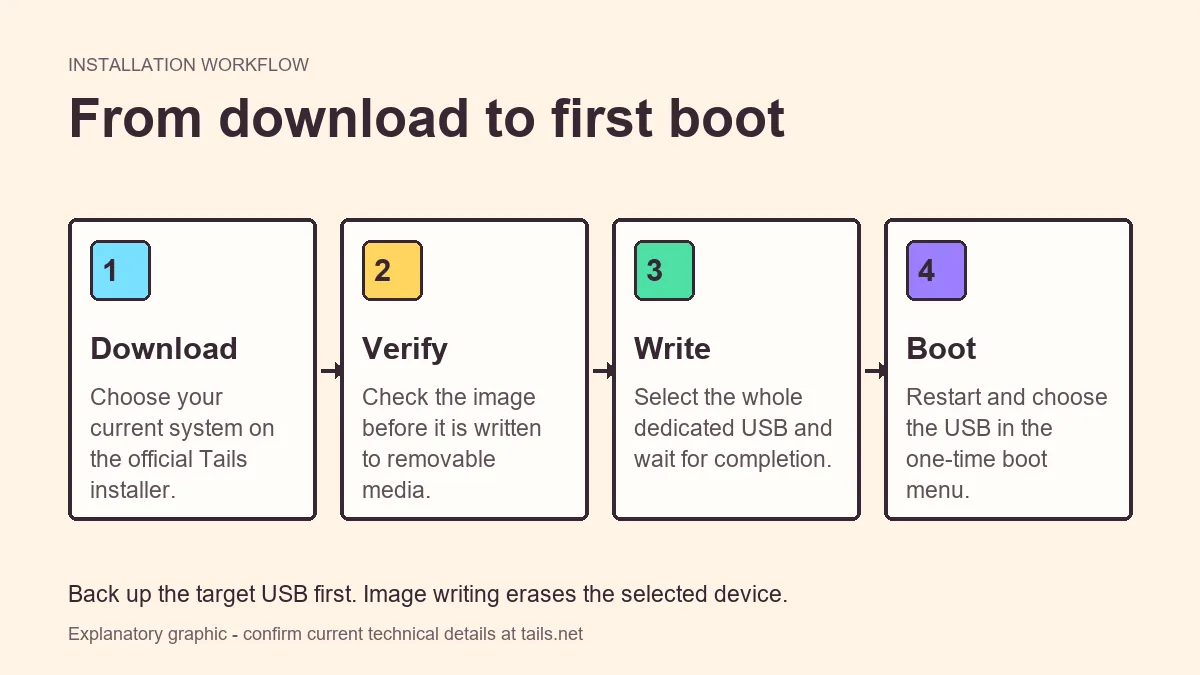
Check the Mac processor before downloading
Tails targets x86-64 hardware. Intel Macs and Apple silicon Macs are not interchangeable even though both run macOS. Open About This Mac or System Information and record the processor or chip and model year.
Do not assume a translation layer that runs Mac applications can boot a different operating system. External boot support is determined by hardware, firmware, and the operating system image.
- Record Intel processor or Apple chip family.
- Record the exact model and year.
- Review current Tails Mac known issues.
- Confirm keyboard and network support.
If current official documentation does not support your Mac architecture, writing the USB will not make it compatible.
Write the Tails USB from macOS
Back up the USB to a different location and disconnect other external disks. macOS may request administrator authentication when a tool writes a raw image.
- 1
Open the official Mac route
Use tails.net and read the compatibility warning before downloading.
- 2
Download and verify
Save the current USB image and complete the official verification.
- 3
Select the whole USB
Use the recommended writer and confirm the external device by capacity and name.
- 4
Wait before removal
Let writing complete, then eject cleanly if instructed.
Start a compatible Mac from the USB
Mac startup selection differs by processor generation. Follow the official instructions for the exact model rather than applying an Intel keyboard shortcut to every Mac.
The external device may appear with a generic boot label. Keep internal system disks and recovery entries distinct from the Tails USB.
- Connect the USB directly.
- Shut down fully before opening startup options.
- Use the model-appropriate startup picker.
- Select the external boot entry and wait for Tails.
Mac compatibility and troubleshooting
A Mac can detect an external drive yet fail later because of graphics, keyboard, wireless, or security-controller limitations. Separate a missing startup entry from a Tails loading failure.
| Symptom | Check | Action |
|---|---|---|
| USB not in startup picker | Port, adapter, external boot policy | Use direct port and current model instructions |
| Prohibited or unsupported symbol | Architecture or firmware | Recheck official compatibility |
| Tails starts without Wi-Fi | Wireless chipset support | Review known issues and supported adapters |
| Black screen | Graphics compatibility | Consult current model-specific workaround |
Test the complete Mac workflow
A startup-picker success is only the beginning of compatibility testing. Check the built-in keyboard and trackpad, display scaling, external display if required, Wi-Fi, audio, and any USB adapter. Newer Mac hardware often depends on model-specific drivers, so record precisely what works instead of assuming all features follow from a successful boot.
Return to macOS after the test and confirm the normal startup disk still loads without an unexpected recovery prompt. Avoid changing startup-security or external-boot settings beyond what current official guidance requires. If a setting must change, understand how to restore it and keep recovery credentials available.
Retest after macOS or firmware updates and before travel. Adapters and docks are particularly important because a device that appears after macOS loads might not be available to early firmware. A direct port is preferable; when an adapter is unavoidable, test it from a full shutdown.
- Test keyboard, trackpad, display, and network.
- Confirm macOS still starts normally.
- Document any startup-security change.
- Test adapters during early boot.
- Recheck after firmware updates.
Build a tested Tails OS for Mac routine
A Tails OS for Mac routine starts with architecture and model identification, not with the download button. Record whether About This Mac shows an Intel processor or an Apple chip, then compare the exact model with current official support and known issues. Similar Mac names can hide different firmware, graphics, wireless, and external-startup behavior.
When the Tails OS for Mac instructions support the hardware, download and verify the image before writing a dedicated USB. Test a direct port from a full shutdown. If an adapter is unavoidable, confirm that firmware can see it before macOS loads; a dock that works on the desktop can still be absent from the startup picker.
Retest Tails OS for Mac after firmware or macOS updates and keep recovery credentials available before changing startup-security controls. A successful boot should include keyboard, trackpad, display, network, and return-to-macOS checks. Document any supported workaround so the process can be reversed or repeated without guessing.
- Confirm Tails OS for Mac architecture support first.
- Use a direct port or a startup-tested adapter.
- Document startup-security changes and recovery steps.
- Retest the exact Mac after firmware updates.
Tails on Mac FAQ
Does Tails run on every Mac?
No. Compatibility depends on processor architecture, model, firmware, and peripherals.
Does Tails run on Apple silicon?
Check the current official support statement. Apple silicon differs from the x86-64 architecture targeted by Tails.
Can I write the USB with Disk Utility?
Use the exact method currently recommended by the official Tails macOS instructions.
Why is Wi-Fi missing after Tails starts?
Some Mac wireless hardware lacks compatible drivers. Review current known issues and supported alternatives.
How do I identify an Intel Mac or Apple silicon Mac?
Open About This Mac or System Information and look for a Processor or Chip field. Record the exact model and year as well, because two Macs with similar names can have different startup controls and hardware support.
Can a USB-C adapter prevent external startup?
Yes. Some adapters and docks work after macOS loads but are not initialized by early firmware. Test a direct port when available, or use an adapter that has been confirmed during a full cold boot on the exact Mac.
Should I change Startup Security Utility settings?
Change startup-security settings only when current official Tails instructions for the exact Mac require it. Understand how to restore the previous setting and keep macOS recovery credentials available before making the change.
Can a Tails VM solve Mac hardware incompatibility?
A VM can be useful for limited testing when the host and hypervisor support it, but it has a different security model and does not turn unsupported hardware into a normal direct-boot Tails computer.
Technical facts and downloads should be confirmed against the official Tails documentation. This independent guide does not host or modify Tails images.